Developer Portal Setup
Follow these steps to set up your developer account and create OAuth clients for the Kryptos Connect API.
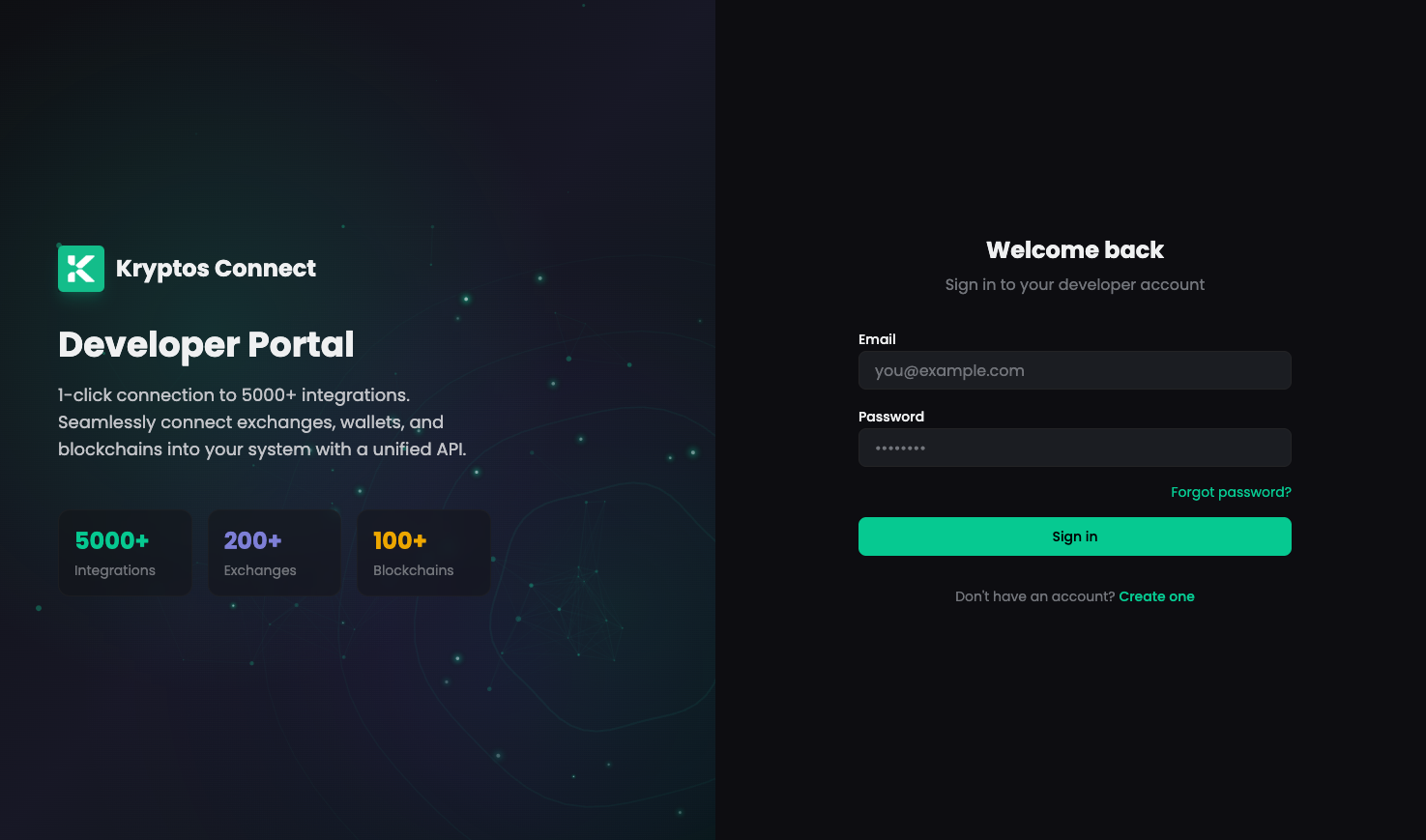
Step 1: Sign Up on the Developer Portal
Visit the Kryptos Developer Portal and sign up or log in with your account.
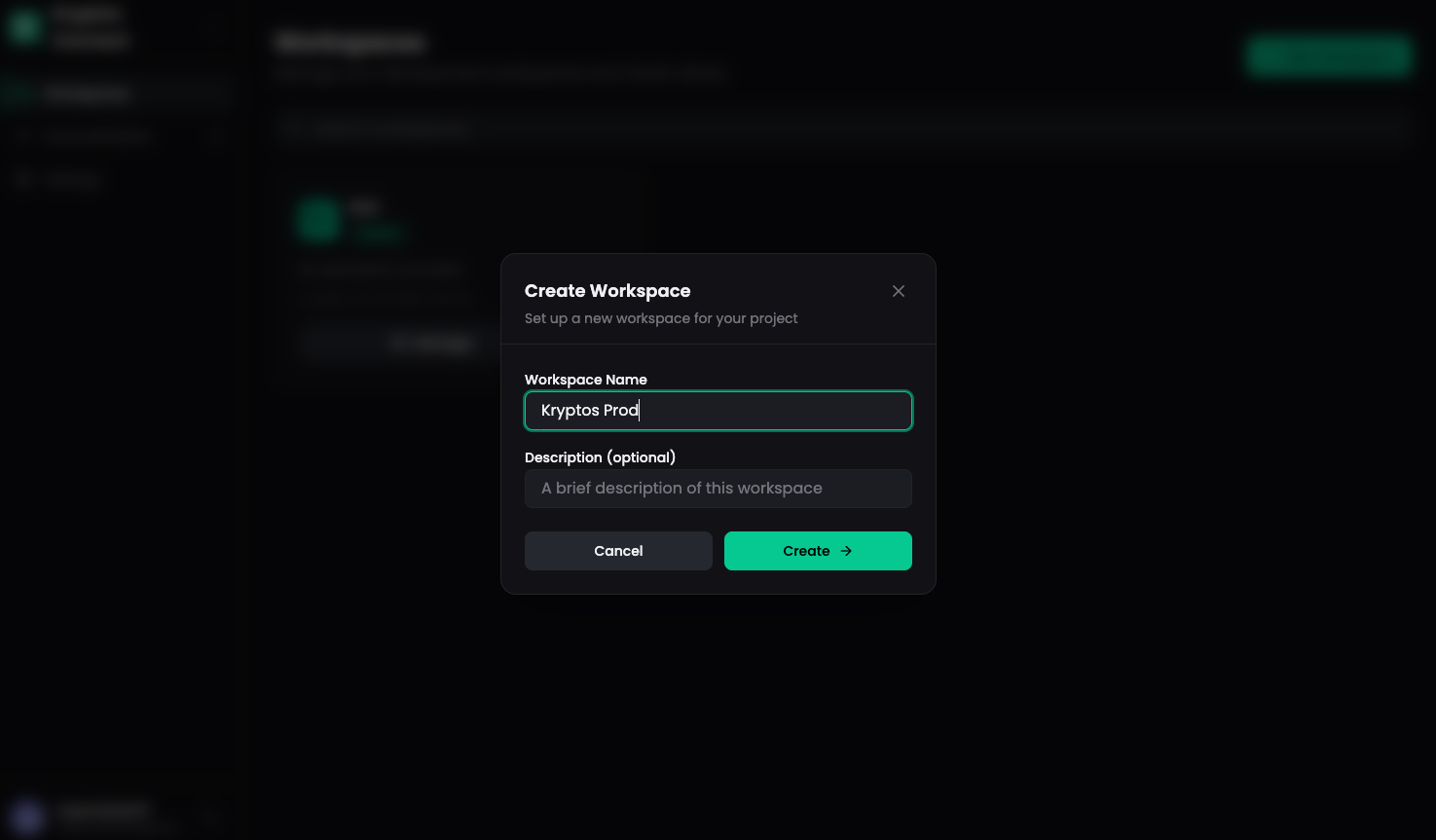
Step 2: Create a Workspace
After logging in, create a new workspace for your application. Workspaces help you organize your OAuth clients and API access.
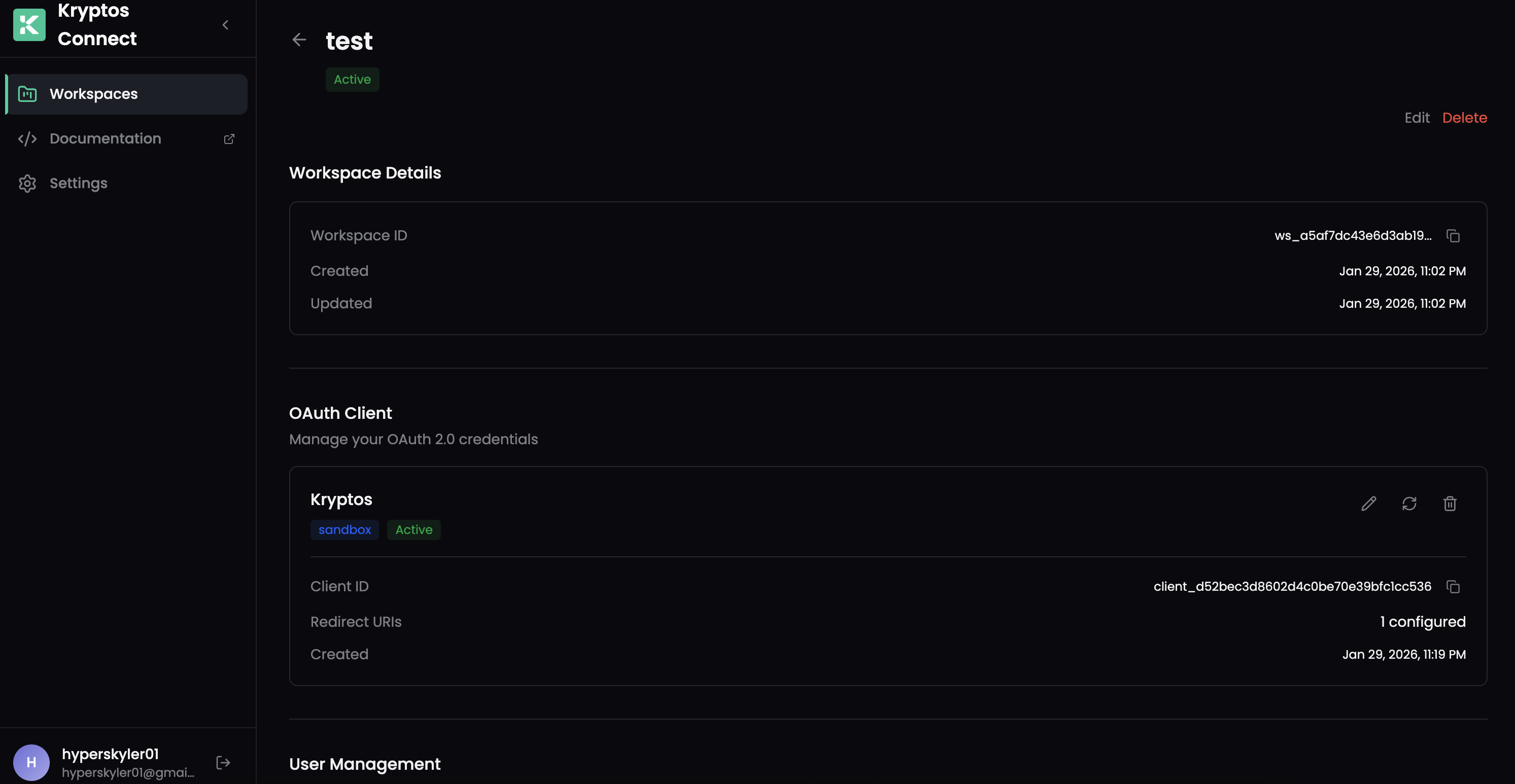
Step 3: Access Workspace Details
Navigate inside your workspace to view the dashboard and available options. Here you can manage your clients, view usage statistics, and configure settings.
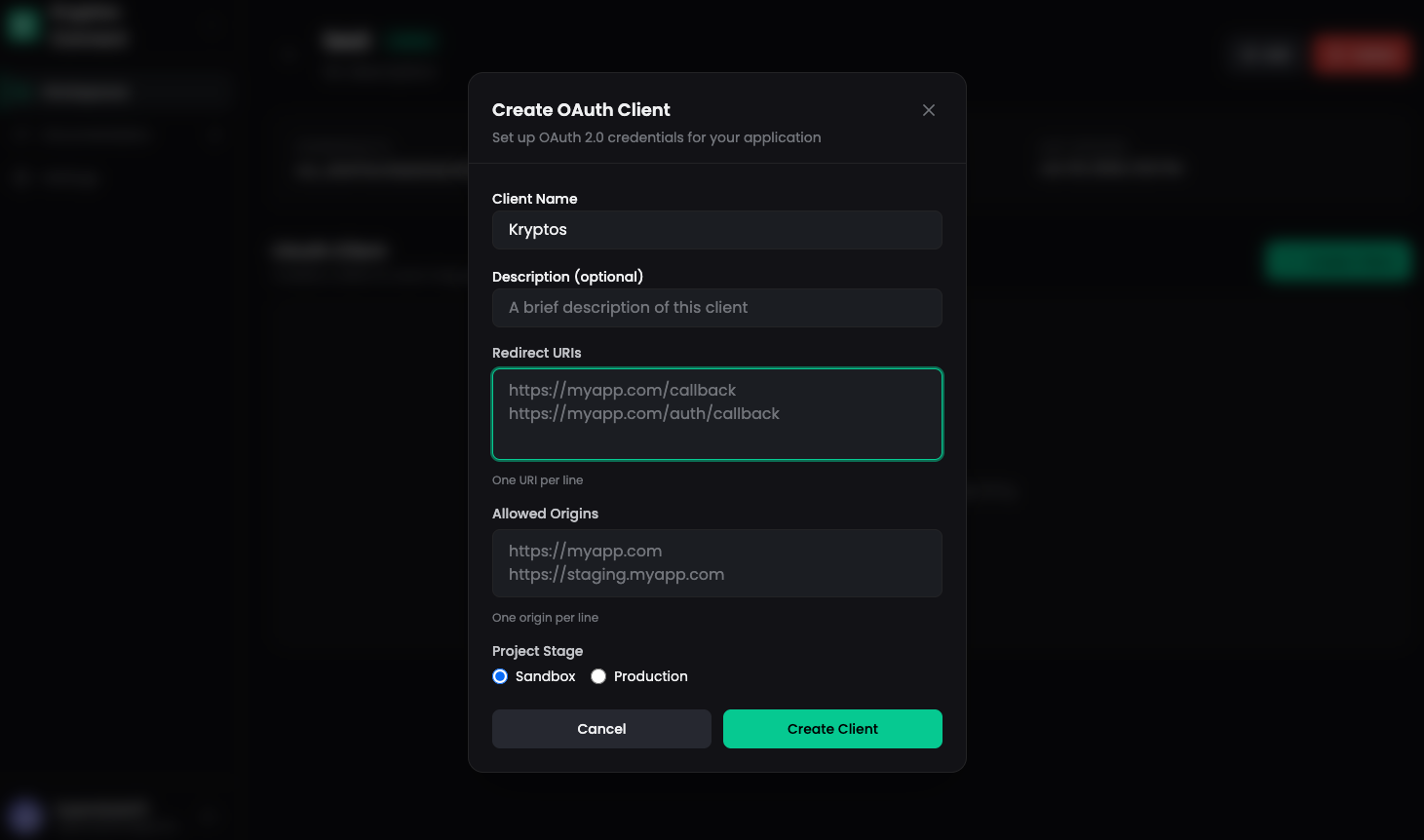
Step 4: Create an OAuth Client
Click on Create Client to register a new OAuth application. Fill in the required details:
- Client Name - A descriptive name for your application
- Redirect URIs - The callback URLs where users will be redirected after authorization
- Scopes - The permissions your application needs
Default Client Scopes
When you create a new client, the following scopes are assigned by default:
openid profile offline_access email portfolios:read transactions:read
integrations:read tax:read accounting:read reports:read workspace:read users:read
Default Scopes Explained:
| Scope | Description |
|---|---|
openid | Required for OpenID Connect authentication |
profile | User profile information |
offline_access | Enable refresh tokens for continuous access |
email | User email address |
portfolios:read | Read portfolio holdings and balances |
transactions:read | Read transaction history |
integrations:read | Read connected wallets and exchanges |
tax:read | Read tax calculations and reports |
accounting:read | Read accounting ledger entries |
reports:read | Read generated reports and exports |
workspace:read | Read workspace settings and configuration |
users:read | Read user profile and preferences |
We will add more granular scope controls in the future, allowing you to request specific permissions for individual features and data types.
Step 5: Save Your Credentials
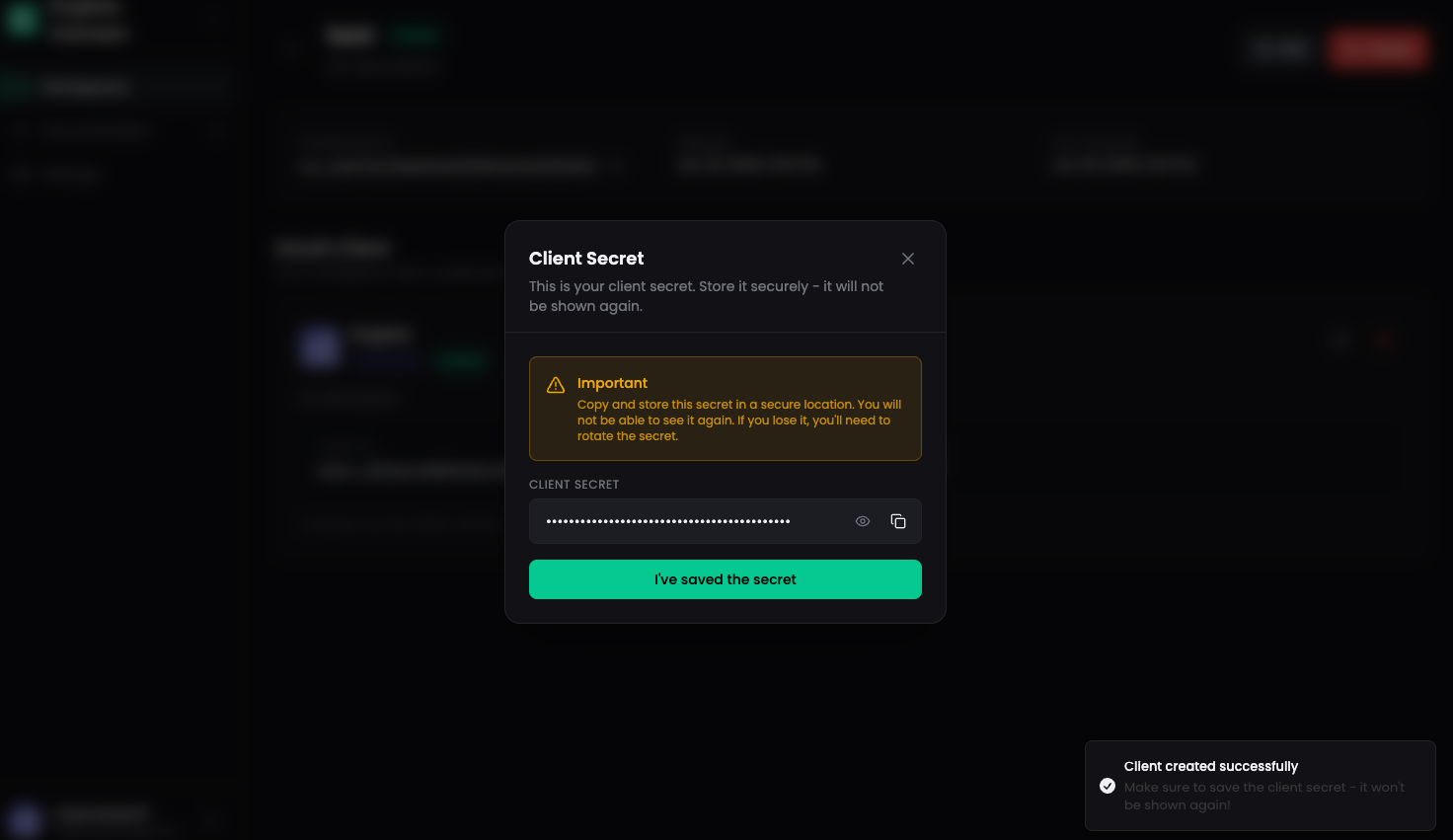
After creating the client, you'll receive your Client ID and Client Secret.
Save your Client Secret securely - it will only be shown once! Store it in a secure location like a password manager or environment variables.
Next Steps
Now that you have your OAuth credentials, you're ready to implement the authentication flow:
- OAuth 2.0 Authentication → - Learn how to implement the authorization code flow with PKCE
- API Key Authentication → - Alternative authentication for enterprise customers
Need Help?
If you encounter any issues during setup, contact our support team:
- Email: [email protected]
- Documentation: https://docs.kryptos.io